
Why split a return flight?
A return flight in MileHunter has always stored one date for the whole trip, which is fine until your outbound and inbound legs happen on different dates that you want reflected correctly, or you just prefer your flight list to read like a log of individual flights rather than round trips. Up to now, the only way to get there was to delete the return entry and log both legs again from scratch, re-entering the route, cabin and airline twice.
How it works
Any flight logged as a return trip now shows a small split icon next to the edit and delete buttons in your flight list.
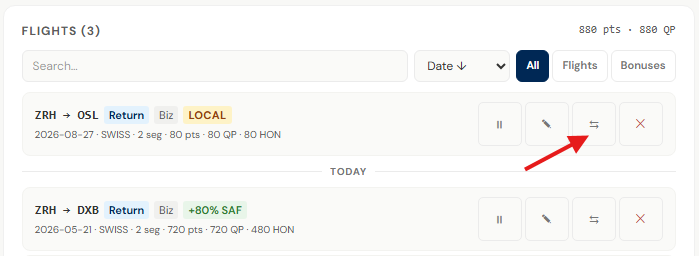
Click it and MileHunter shows you exactly what the split will produce before you commit to it — the outbound leg and the inbound leg as two separate flights, each with its own points, Qualifying Points and HON Circle Points.
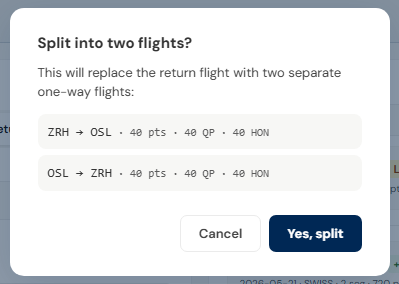
Confirm, and the original return entry is replaced by two independent one-way flights. MileHunter dates the inbound leg one day after the outbound leg by default, and each flight can be edited, paused or deleted on its own from that point on — including adjusting either date if your actual travel dates were different.
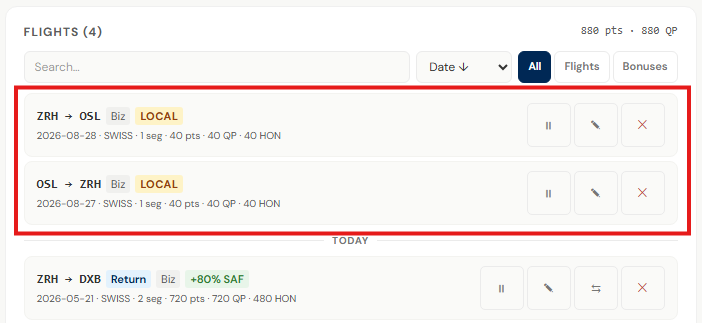
Your totals stay exactly the same
Splitting only changes how the trip is displayed and organized. The points, Qualifying Points and HON Circle Points are carried over from the original segments, so your yearly totals and status progress do not move at all — you just get two entries instead of one.
Available now, free and Pro
The split action works the same way whether your flights are stored locally on the free plan or synced to the cloud on Pro. It is live in the dashboard now — look for the split icon next to any return flight.
Log flights, split return trips, and always know exactly where you stand for Frequent Traveller, Senator and HON Circle. No credit card required.
Create free account →